
Remove Optional and Probably Unnecessary Windows Vista Components

In the never-ending quest to rid your computer of unnecessary bloat, Windows Vista has a lot less options than prior versions, but you can still get rid of some of the extra Windows components that you don't need.
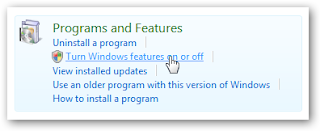
Open up Control Panel and go to the Programs and Features section. Find the link for "Turn Windows features on or off" (or you could just search for it)

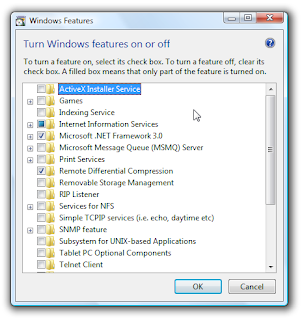
This dialog is quite self-explanatory… uncheck the things you don't want, and hit the OK button. Depending on the version of Vista you are running you might not see everything in the list.

Guidelines, Not Set In Stone

Just to get you started, here's a few tips on what an average user might want to enable or disable. The rules will be different for everybody, depending on your applications and needs, so don't take these as absolute.
  • ActiveX Installer Service
    No
    Do you really want anything to do with ActiveX?

  • Games
    Why Not
    Your productivity can only increase with Spider Solitaire on your computer.

  • Indexing Service
    No
    This is the old indexing service that is no longer needed in Vista.

  • Internet Information Service
    No
    Used for hosting websites on your computer.

  • Microsoft .NET Framework 3.0
    No
    Used for the new .NET 3.0 components, but only really needed for programmers.

  • Microsoft Message Queue (MSMQ) Server
    No
    Used by programmers as a way to reliably queue messages.

  • Print Services
    No
    You only need this if you use internet printers and like to kill trees. Our rainforests are depending on you disabling this service.

  • Remote Differential Compression
    Maybe
    This is likely required for utilities that use the network to download files. If it is enabled, don't mess with it.

  • Removable Storage Management
    No
    The only reason you'd need this is if you are restoring from old NTBACKUP files.

  • RIP Listener
    No
    You won't need this, it's a routing protocol.

  • Services for NFS
    No
    This can be used to map a drive to a linux NFS server. Unlikely you'd need it since Samba works so well.

  • SNMP Feature
    No
    This is used for management systems in workplace networks. You don't need it.

  • Subsystem for UNIX-based Applications
    No
    This is used for compatibility with certain applications based on UNIX… you don't need it.

  • Tablet PC Optional Components
    Maybe
    If you have a Tablet PC, you should enable this. If you don't, you may still want to because this includes the Snipping Tool.

  • Telnet Client
    AVOID
    You should never use telnet. Ever.

  • Telnet Server
    AVOID
    You should never use telnet. Ever.

  • TFTP Client
    AVOID
    TFTP was used by many of the early internet worms… there's a reason it's disabled by default.

  • Windows DFS Replication Service
    No
    This is only really used in work environments. Don't bother with this if you are a home user.

  • Windows Fax and Scan
    No
    Why anybody still faxes anything is beyond me.

  • Windows Meeting Space
    No
    If you don't use Windows Meeting Space or the "People Near Me" feature, don't bother with this.

  • Windows PowerShell
    No
    PowerShell is a more advanced command line geared towards programmers and system administrators.

  • Windows Process Activation Service
    Probably
    This is likely required to support some .NET applications, so I wouldn't change whatever it's currently set to.

  • Windows Ultimate Extras
    Maybe
    If you like the extras, then enable them. (Ultimate Only)
Hopefully this will help somebody!

What is svchost.exe And Why Is It Running?

You are no doubt reading this article because you are wondering why on earth there are nearly a dozen processes running with the name svchost.exe. You can't kill them, and you don't remember starting them… so what are they?

So What Is It?

According to Microsoft: "svchost.exe is a generic host process name for services that run from dynamic-link libraries". Could we have that in english please?

Some time ago, Microsoft started moving all of the functionality from internal Windows services into .dll files instead of .exe files. From a programming perspective this makes more sense for reusability… but the problem is that you can't launch a .dll file directly from Windows, it has to be loaded up from a running executable (.exe). Thus the svchost.exe process was born.

Why Are There So Many svchost.exes Running?

If you've ever taken a look at the Services section in control panel you might notice that there are a Lot of services required by Windows. If every single service ran under a single svchost.exe instance, a failure in one might bring down all of Windows… so they are separated out.

Those services are organized into logical groups, and then a single svchost.exe instance is created for each group. For instance, one svchost.exe instance runs the 3 services related to the firewall. Another svchost.exe instance might run all the services related to the user interface, and so on.

So What Can I Do About It?

You can trim down unneeded services by disabling or stopping the services that don't absolutely need to be running. Additionally, if you are noticing very heavy CPU usage on a single svchost.exe instance you can restart the services running under that instance.

The biggest problem is identifying what services are being run on a particular svchost.exe instance… we'll cover that below.

If you are curious what we're talking about, just open up Task Manager and check the "Show processes from all users" box:


Checking From the Command Line (Vista or XP Pro)

If you want to see what services are being hosted by a particular svchost.exe instance, you can use the tasklist command from the command prompt in order to see the list of services.
tasklist /SVC

The problem with using the command line method is that you don't necessarily know what these cryptic names refer to.

Checking in Task Manager in Vista
You can right-click on a particular svchost.exe process, and then choose the "Go to Service" option.

This will flip over to the Services tab, where the services running under that svchost.exe process will be selected:


The great thing about doing it this way is that you can see the real name under the Description column, so you can choose to disable the service if you don't want it running.

Using Process Explorer in Vista or XP

You can use the excellent Process Explorer utility from Microsoft/Sysinternals to see what services are running as a part of a svchost.exe process.

Hovering your mouse over one of the processes will show you a popup list of all the services:

Or you can double-click on a svchost.exe instance and select the Services tab, where you can choose to stop one of the services if you choose.


Disabling Services

Open up Services from the administrative tools section of Control Panel, or type services.msc into the start menu search or run box.

Find the service in the list that you'd like to disable, and either double-click on it or right-click and choose Properties.


Change the Startup Type to Disabled, and then click the Stop button to immediately stop it.


You could also use the command prompt to disable the service if you choose. In this command "trkwks" is the Service name from the above dialog, but if you go back to the tasklist command at the beginning of this article you'll notice you can find it there as well.

sc config trkwks start= disabled

Hopefully this helps somebody!

Enable Hidden BootScreen in Windows Vista

The Windows Vista BootScreen is pointless, but Microsoft decided to hide a more visually appealing boot screen that can easily be enabled with very little trouble. I'm not sure why they didn't make the boot screen better.

If you really want a better boot screen, you can check out my article on creating a custom boot logo.

Here's the default boot screen:


And here's the hidden one, called "Aurora"


All you have to do is type msconfig into the start menu search box, and hit enter.


Click the Boot tab, and then check the "No GUI boot" checkbox.


Hit OK and reboot the computer. You should see the new boot screen immediately.

Note: You may get a Windows Defender error on the next startup. You can enable the system config utility using the tray icon and this error will go away. (http://www.howtogeek.com/)

Recent Comments

Partner Site :

Critics, Comments, Suggestion, Concerns

Computers Science Desktop PCs Laptops / Notebooks Network Internet Maintenance and Troubleshooting Cool Windows Guide, Tips and Tricks PC Games
Add to Technorati Favorites Top Blogs blogarama - the blog directory Computers Computers blogs Hardware Blogs - Blog Catalog Blog Directory
Search Engine Optimization and SEO Tools
Template by KangNoval & Abdul Munir | blog Blogger Templates