
Create a Custom Boot Logo for Windows Vista

NOTE: THIS DOES NOT WORK WITH VISTA SP1. IF YOU ATTEMPT THIS IN SP1, YOU WILL NOT BE ABLE TO BOOT YOUR COMPUTER.

If you are a desktop customization kinda guy, one of the first things you'll want to figure out is how to create a customized boot logo. There's a little utility that you can use to create the boot logo formats.

DO NOT DOWNLOAD THIS UTILITY IF YOU HAVE VISTA SP1

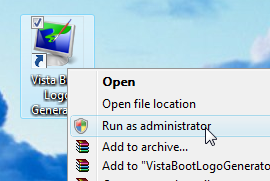
First you'll need to download the Vista Boot Logo Generator 1.1 utility, which we'll use to create the correct logo image type. Once it's installed, you need to make sure that you run the application as administrator:


We should choose an appropriate logo file. Since I'm a big fan of linux, and not as big a fan of Windows Vista, I chose an image of Tux making windows suck that I found over here.
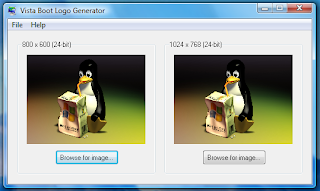


Choose two versions of the image, one needs to be 800×600 at 24 bit color, and the other 1024×768 at the same color depth. Both files must be in Bitmap(BMP) format. Save the file somewhere like your desktop, because we can't yet copy directly to the correct directory, until we take ownership of the file.

To take ownership of the file, you'll have to open an administrator command prompt. (type cmd into the start menu search box, and hit Ctrl+Shift+Enter), and then run this command:

takeown /f C:\Windows\System32\en-US\winload.exe.mui

Now run this command, substituting geek for your username:

cacls C:\Windows\System32\en-US\winload.exe.mui /G geek:F

Now copy the file that you created into the C:\windows\system32\en-US\ directory. Make sure you choose the overwrite option.

Now you'll need to use the msconfig utility. Just type msconfig into the start menu search box, and then click the Boot tab:


Check the "No GUI boot" option, and we're all ready to reboot and test it out. Sweet!
(http://www.howtogeek.com/)

Customize Your Windows Vista Logon Screen

For those of us looking to customize the Windows Vista UI experience, there's nothing more annoying than seeing the default logon screen every time you start up your computer, or when you lock your workstation. Thankfully the nice folks at Stardock have created a free utility to replace the logon screen with any wallpaper you choose.
All you have to do is download and install the utility, and click the apply button to immediately see the changes. (It will lock your computer to show you, so you'll have to use your password to unlock it)

The utility is remarkably easy to use, just click on an entry in the list, and use the Apply button to select it. The download button will take you to the directory of logon screens on WinCustomize.

You can also click the Create button and choose any image you want. For instance, if you wanted to have the logon screen match your desktop wallpaper, just choose the wallpaper using the browse button.

You can then save the wallpaper as a logon screen file and even share it with other people on WinCustomize.
Download LogonStudio from Stardock (Free)

Latest MSI Netbooks With Higher Specs


The laptop and netbook manufacturer MSI has upgraded its famous MSI Wind series with two new netbooks sometime in January next year. Dubbed as the U110 and U115, both netbooks feature 10 inch display at 1,024 × 600 resolution, Intel Atom Z530 1.6GHz processor, Poulsbo US15W chipset, 6-cell battery, up to 250GB HDD for the U110, Wi-Fi B/G/draft-N connectivity, Hybrid storage, 1GB RAM, three USB 2.0 ports and a 2MP webcam. These netbooks also offer the Hybrid Storage feature that uses a combination of SSD and HDD. [UMPC Portal]

Recent Comments

Partner Site :

Critics, Comments, Suggestion, Concerns

Computers Science Desktop PCs Laptops / Notebooks Network Internet Maintenance and Troubleshooting Cool Windows Guide, Tips and Tricks PC Games
Add to Technorati Favorites Top Blogs blogarama - the blog directory Computers Computers blogs Hardware Blogs - Blog Catalog Blog Directory
Search Engine Optimization and SEO Tools
Template by KangNoval & Abdul Munir | blog Blogger Templates